Tampilkan postingan dengan label Seo Tools. Tampilkan semua postingan

How To Change Blogger’s Post Title Format

Posted by tris tecno Rabu, 14 Desember 2011 0 komentar
If you are one of those with long page titles, you sure won’t like the way your blog shows up on search results with your post title looking so wierd.

By default, blogger’s posts title always places your whole site title before the real post title. If your site title is too long, your real post title containing your keywords might not show up on search results.


Now check this example: here’s a blog with site title as “Tips And Tricks on Building A Better Blog, SEO and Online Money Making” and a blog post titled “How to Make Money Reading Mails“

By Default, the Post title appears like this:

(Tips And Tricks on Building A Better Blog, SEO and Online Money Making : How to Make Money Reading Mails)

But after going through this tutorial, the title will look like this:

(How to Make Money Reading Mails | Tips And Tricks on Building A Better Blog, SEO and Online Money Making)

The second title definitely looks better as the subject matter of the blog post is easily seen. This is also good for search engine optimization. This blogger title swap is a must-do hack for your blog.

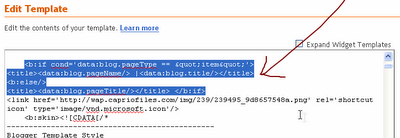
1. To change the title, Go to “design

2. Select “Edit HTML

<title><data:blog.title/></title>

If you can’t find that, search for this:

<title><data:blog.pageTitle/></title>

4. Replace completely with:

<b:if cond='data:blog.pageType == "item"'>
<title><data:blog.pageName/> |<data:blog.title/></title>
<b:else/>
<title><data:blog.pageTitle/></title> </b:if>


5. Save your template.

6. View your blog and watch the title swap change your post title format

Now this won’t reflect immediately on search engines as your indexed pages will only be updated when search bots come visiting.

How to show HTML/java codes in blog posts "For Blogger"

Posted by tris tecno 0 komentar
If you’re a blogspot platform blogger and want to show HTML source codes in your blog posts then you must had a hard time how to make it done.


For fix this you have to take two simple steps,

Step 1

You have to add a special code inside your blogger template. Go to your blogger Dashboard > Layout > Edit HTML. Now hit CTRL+D on your keyboard and search this tag,

]]></b:skin>

Now you have to add this code above that code,

Source BlogKori.Com : How to show HTML/java codes in blogger(blogspot) blog posts with table + Raw HTML converter | BlogKori
Under Creative Commons License: Attribution Share Alike

pre
{
background:#efefef;
border:1px solid #A6B0BF;
font-size:120%;
line-height:100%;
overflow:auto;
padding:10px;
color:#000000 }
pre:hover {
border:1px solid #efefef;
}
code {
font-size:120%;
text-align:left;
margin:0;padding:0;
color: #000000;}
.clear { clear:both;
overflow:hidden;
}

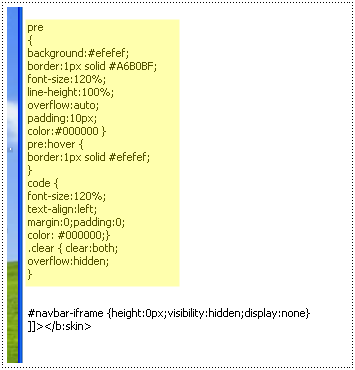
Now it will look something like this,
 

After you done it, click the “Preview” button to see if your blog shows or not. If everything’s okay, then click, “Save template

Step 2

Now each time you create a post and you need to add some HTML codes inside your post, you have to convert it into escapable characters. For this go to this tool called Quick escape and insert your code. Click, “Convert to escaped character” the converted code will be different than the original.

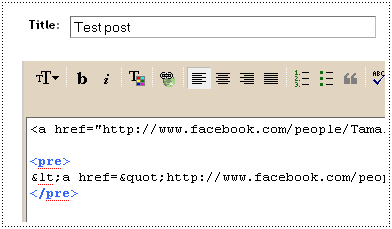
Now create a new blog post and add the converted code. You have to enclosed the code with a “pre” tag(marked as blue) For this I’ve added the same code twice. One normally and the other one with the hack.


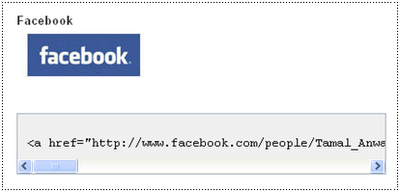
Publish your post and see the magic! The normal code showed up with the effect but the hacked on remained intact inside the table.


Please leave a comment with your response and any suggestion for this blogger hack. If you run into any trouble, feel free to ask me a question. Please do share/save this page if it helped you.

10 Steps To Drive Traffic to Your Blog From LinkedIn

Posted by tris tecno Selasa, 09 November 2010 0 komentar
Whether you just created your first blog, or you are considered one of the top bloggers in the world like Darren Rowse, Chris Brogan, or Tim Ferriss, you are always looking for ways to generate more traffic to your site.  Even more so, you are looking for qualified traffic to your site, (i.e people who are interested in the content you produce).

LinkedIn is a great way to generate free, organic, traffic to your blog.
“But Lewis, isn’t LinkedIn just a site to post my resume when I am looking for a job?”
No, wake up people!  Although LinkedIn has been great for job seekers during the most recent economic cycle, it is much much more than that.  Individuals and companies are achieving more professional goals than imaginable on LinkedIn.  For example, LinkedIn can help you:
  • Sell products
  • Find new clients or employees
  • Generate leads
  • Receive funding for your company
  • Obtain sponsorships
  • Sell hundreds of tickets to your professional event
  • Get national and local press coverage
  • And last but not least, drive massive traffic to your blog
Achieving these goals on LinkedIn don’t come naturally.  You’ve gotta work the system on LinkedIn and experiment with different methods.  I’ve come up with the best ways to achieve those goals.  Here are my top 10 ways to drive traffic to your blog using LinkedIn:

1.  Complete Your Profile:

Numerous individuals have told me LinkedIn doesn’t work for them. I always ask them how much time they have put into using LinkedIn, their response – very little.  If your profile is weak people will lose interest quickly and may never click on your website links.
If you want people to read your profile and click on your websites then make your profile concise, compelling and value driven throughout.  Complete your profile 100%, add a great picture of yourself, and take the entire process very seriously.  The more complete and compelling your profile is, the more people will read and visit links you have posted.
This advice goes beyond driving traffic to your blog.  If someone were to Google your name (which most people do when they are researching you) your LinkedIn profile is one of the first things that pop up.  Personally, my LinkedIn profile is the third result, and for Darren Rowse it comes up seventh (before Facebook or Twitter).  Google your own name and check out what position your LinkedIn profile shows up.  You must make your profile compelling.

2.  Increase Your Connections:

The more connections you have, the more people will have access to your profile.  Every time you take an action on LinkedIn (i.e. update your profile, join a group, recommend someone, RSVP to an event, etc… this shows up on the home page of your 1st degree connections).  If you only have 100 connections, this limits the amount of potential clicks on your profile and website links per day. Constantly be updating and adding new connections.
add connections

3.  Customize Your Website Links:

When you first create your profile your website links will look like this:
blog links
However this is not a “call to action” and you are missing potential traffic because of it.  No one actually cares what your blog is unless it is relevant to them or solves a problem.  Instead, customize your website links to attract more clicks and drive more traffic to your blog.  If I were Darren, I would insert this:
LinkedIn blog
The second image is more compelling and explains exactly what the viewer will see on the next page when they click on each link.  In order to change your websites with a custom headline, click on the “edit” button next to one of the websites. View the image below for further details:
LinkedIn

4.  Answer Questions:

This is a great way to drive traffic to your blog.  The more questions you answer, the better the chances are of that person asking the question to click on your blog to learn more about you. Not only will that one person be more interested in learning more about you, but also others answering that question.  Additionally, when someone rates your answer as “The Best” of the mix, it will improve your thought  leadership status. It moves you up the rankings as a “featured expert” in the category you answered in.  When you are a featured expert people become more aware of your profile, and the chance they will click on your link to learn more about what you have to offer improves.

5.  Update Status:

For you Twitter lovers out there, this should be an easy step to take.  LinkedIn also has a status update feature that is a lot like Twitter, only it gives you 148 characters to work with instead of 140. Why is it so important to constantly update your status?  Because it is the first thing that pops up the home profile for all of your connections.  Check out your home page on LinkedIn and you will see a few status updates of those your are connected to.  If they are smart, they will include some compelling copy with a call to action and a link back to their blog (something I do that drives traffic to mine).
status update

6.  Join Niche Groups:

Whatever your blog is about, there is an audience of people on LinkedIn that share interest with.  To make it easy to find these people click on the “Group Search” tab and type in some key words that relate to your blog.  I have a sports industry blog that focuses mostly on social media with an audience of professionals who work in the sports.  I joined all of the professional sports groups I could find:
sports groups
Some of these niche groups have thousands of members who are actively involved in connect with other members.  If you are not in the groups where your audience for your blog is hanging out, then you are missing out on the opportunity for new readers, and organic traffic to your site.  Join as many groups as you can after doing a key word search that relates to your blog.
For starters – check out the Professional Bloggers Group.

7.  Post Comments In Groups:

Some larger groups are receiving hundreds of new discussion topics every few days (think of it as a forum).  People are sharing points of discussion, commenting and giving further feedback and suggestions on those comments.  Every time someone creates a new discussion topic, it shows up on the home profile of everyone in that group.  If there are 100,000 people in the group, then you are potentially getting the attention of 100,000 other individuals for your comment.
music group

8.  Add RSS Feed to Groups:

Each group has a section that allows you to add a link to a website with the latest news you think is relevant to that group.  It also allows you to add your own RSS feed or website link so it will automatically update the group every time you post a new article on your blog.  This creates an automated flow of organic traffic that will show up on the home profile of everyone connected in the group.  Again, this gives you more opportunities for people to view your blog.
LinkedIn

9.  Create a Group:

This may be one of the most powerful things you can do on LinkedIn.  I won’t go into all of the amazing details on how this has helped me, but I will tell you that owning a group drives a lot of traffic to your site. I own several niche related groups on LinkedIn.  For example, I created the Sports Industry Network group on LinkedIn and there are currently over 19,500 members.  When a new person joins the group, they see a brief description of the group, my name as the owner of the group, plus my website url www.sportsnetworker.com.  Since my group gets over 100 new members each week, that’s additional traffic from new members alone. That’s not even including the close to 20,000 members who are actively engaging in the group, and clicking on my blog links.

10.  Add the Blog Application to Your Profile:

This might be the most obvious suggestion, but I still see some of the top pro bloggers leaving this feature out.  This application posts the title and first paragraph for your most recent articles you have published on your LinkedIn profile.  It is a way to give viewers of your profile a sneak peak of what they will read on your blog.
Go to “applications” and download either the WordPress or Blog Link application and add your URL for your blog.
linkedin blog application
LinkedIn continues to be one of the top sites that drives traffic to my blog, thanks to these 10 examples, but the power of LinkedIn doesn’t stop here. What other tips have you found through using LinkedIn to increase traffic to your blog?

 This Article from : problogger.net
Every Bloggers Need Google Analytics

Posted by tris tecno Sabtu, 06 November 2010 0 komentar
Want to know where your visitors come from? What keywords they use on google to get to your site? What browser or screen resolution they have? Where in the world are they located?.

Easy, just go ahead and sign up to Google Analytics and start collecting stats. It provides a lot more stats than the Google Webmaster Tools we profiled in an earlier post. it is complete with a lot of reports and charts easy enough to comprehend for the newbie, but powerful enough for the Power User.

For now I'll just advise you to go ahead and sign up, in the future we will be doing a full review of the site and all of the reports that you have at your disposal.

Change the Title Tags in Blogger for More Search Engine Traffic

Posted by tris tecno 0 komentar
By default Blogger displays the blog title first, followed by the name of the post. As you might notice this is not good when it comes to SEO. It's important for the name of the post to come before the name of your blog, especially when it comes to google search results. Learn how to make your post title show up first so that you can reel in more traffic from the search engines.


Why Change the Titles?
It's quite important to have the Post Title + Blog Title arranged accordingly because this is how you would want your blog to be displayed on google's search results. This way more people will click on your link when searching google because the post title is more relevant than your post name.
Example Google Search Results:
You are most likely to click on the bottom image when searching google for the keywords "image reflection generator". The reason being is that your mind reads text from left to right. So it makes sense to have the more important title on the left.

How to Change the Titles:
  1. Go to Layout>edit HTML in your Blogger dashboard.
  2. Search for this tag: <title><data:blog.pageTitle/></title>
  3. Replace this tag with the following code:
  4. <b:if cond='data:blog.pageType == &quot;index&quot;'> <title><data:blog.title/></title> <b:else/> <title><data:blog.pageName/> | <data:blog.title/></title> </b:if>
  5. Save your template and you should see the results in your web browser as depicted in the images below.
  6. It may take a few days for the changes to show up on the google search results. I guarantee you that you will start receiving more traffic from google once you are re-indexed!


Make sitemap for blogger and submited to search engines

Posted by tris tecno Kamis, 04 November 2010 0 komentar

Sitemaps, in simple English, are text files (see example) containing a list of all web pages that exist on your site. It is important that you create a comprehensive sitemap as it will help Google and other search engines crawl your site better and that might mean more traffic coming your way in the long run.

The Problem with Blogger Sitemap Files

Ideally, the sitemap file should contain all URLs of a site but if your blog is hosted on blogspot.com (or if you are using a self-hosted version of Blogger with a custom domain), you’ll be surprised to know that the default sitemap file (see example) contains only the 26 most recent pages of your blog.

That’s a bad thing because some of your older blog pages, that are missing from the system-generated sitemap file, may never get indexed in search engines. There’s however a simple solution to fix this problem.

Generate a Complete Sitemap for your Blogger Blog

Step 1: If you haven’t done this already, sign-in to your Google Webmasters account and add your blog. For details, check this video tutorial on how to add a blog to Google.
Step 2: Once your blog is added to Google, open the Sitemap Generator and type the full address of your blogspot blog (or your self-hosted Blogger blog).

Step 3: What you get is list of sitemap files that contain each and every page of your blog. You now just have to ping Google, Yahoo and Bing to inform them about these XML sitemaps.
As shown in the video screencast below, you need to manually add each of the sitemap files into your Google Webmaster Tools dashboard but for Bing or Yahoo, you can simply click blue hyperlinks and these search engines will automatically download the relevant sitemap files from your blogspot site.


Once all the Sitemaps are added, your Google Dashboard should look something like this.


If you see a red cross or an orange exclamation symbol instead of the green tick, that means something is wrong with your XML sitemap. Verify that the file exists by typing the sitemap URL in your browser.
Sometimes media enclosures (like MP3 files) in blog posts can create warnings during sitemap submission. And if you have switched from Blogger to WordPress, it still makes sense to submit sitemaps of your old Blogspot blog as that will only help search engines discover your new WordPress pages. Good luck.

This article From : labnol.org

10 SEO Tools For Blogger

Posted by tris tecno Senin, 01 November 2010 0 komentar
Every blogger wishes to find his blog coming at the top rankings in various search engines when keywords related to that are entered. However, this cannot be achieved without doing anything. You need to acquire as much knowledge about Search Engine Optimization (SEO) and use best SEO tools for promoting your blog. Here is a list of ten useful seo tools which you must use as a blogger.

1. Use Multirank checker from iWebTool.com
If you wish to check Google page rank of your blog and several other blogs without doing it manually then you should use this tool. It saves a lot of time as one can check page rank in bulk.
2. Use SEO Analyzer from Sitening.com
It is one of the best SEO tools for all those bloggers who have just started promoting their blog. You would also be able to download previous reports easily by using this SEO tool. All the applications in this SEO tool are user friendly.
3. Use Backlink Checker from Link Diagnosis
It is one of the best free backlink checker tool. As a blogger you need to use this tool for checking backlinks. One can also analyze backlinks of competitors by using this SEO tool.
4. Use Google Analytics from Google.com
This seo tool is available from Google for free. By using this tool, you can get reports related to traffic to your blog, funnel information etc. This seo tool is based on Urchin and used by numerous bloggers and website owners.
5. Use Keyword Density and Prominence tool from Ranks.nl
By using this tool, you can get to know about the density of keywords on a particular page. It also analyzes the keywords included in tags.
6. Use Visual Page Rank from iWebtool.com
People who are fond of graphics would find this seo tool very nice. Page ranks can be checked with this seo tool visually. A lot of people who find it dull to check page rank in their blogs use this seo tool.
7. Use RankingChecker from SEOmoz.com
By using this seo tool you can check rankings for a website for upto hundred keywords of your choice at a time on Google, Yahoo and Live.com.  The best thing about this tool is that you can get rankings for keywords in country specific searches on Google and Yahoo. Suppose, I want to check my website rankings on Google.co.uk, I can do that by using this keyword rank checker tool from Seobook.
8. Use Fiddler Web Debugging tool from Fiddlertool.com
By using this seo tool, you can get reports about all types of communication between servers and the browser. You do not need to pay anything for using this seo tool.
9. Use SEOQuake SEObar Internal links option
By using this seo tool, one can get to know about the strongest pages on any website or blog. It helps people in knowing about the pages which have a large number of inbound links.
internal strength analysis
10 Use Google Adwords Keyword Tool
One can use this keyword tool from Google to get more keywords around a keyword of your choice and also can use this tool to find out keywords list by entering a website address. This tool provide many more features like monthly searches for keywords globally and locally, advertisers competition with average cost per click etc
These were the top 10 seo tools I think every blogger should use. Do you think I missed any of your favorite tool in this list, please share in the comments section.
Anil Gupta writes about making money, seo, affiliate marketing, social networking and various blog tips on his ScopeForMoney blog.
Ping your blog, website, or RSS feed for Free